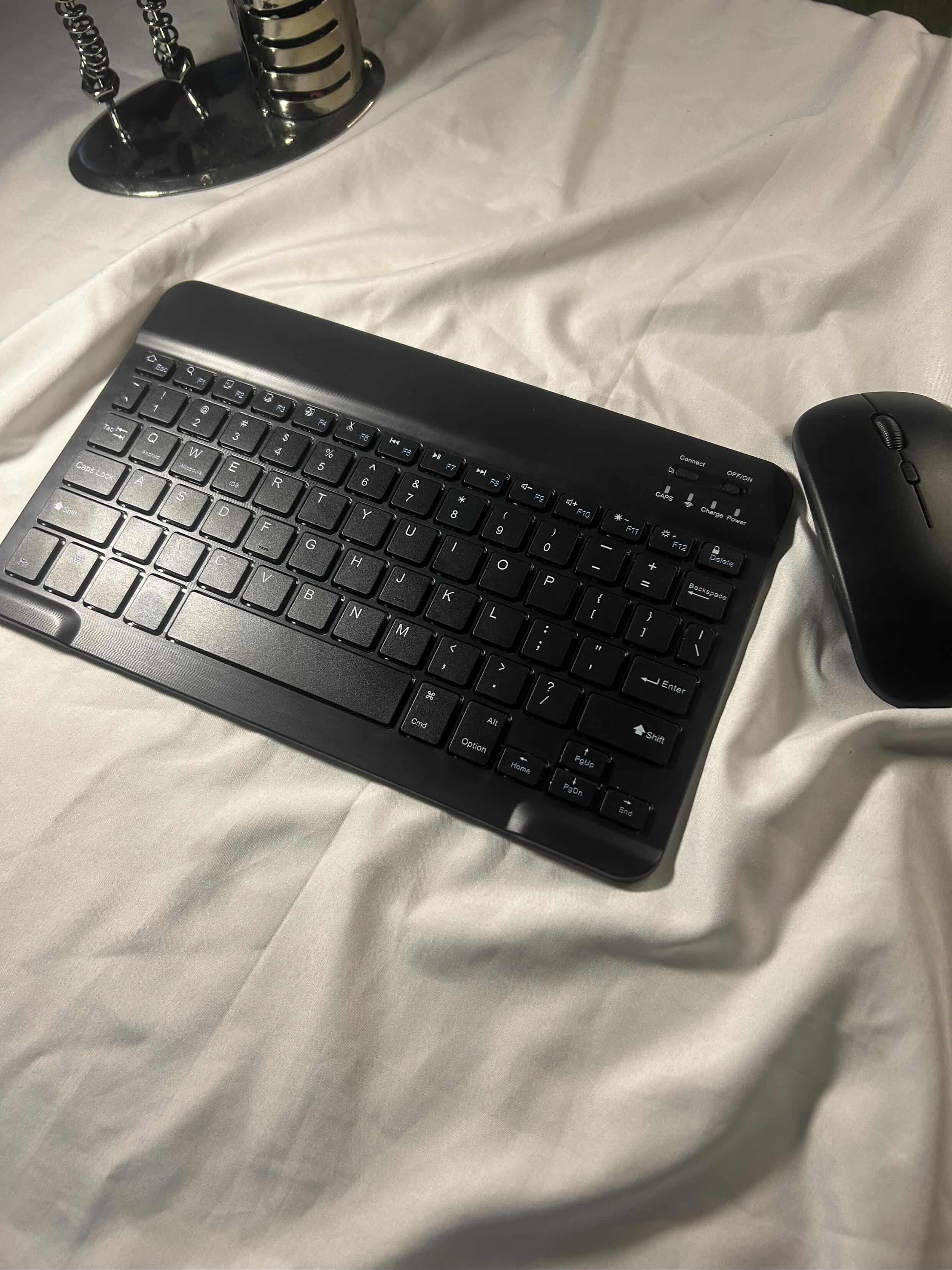
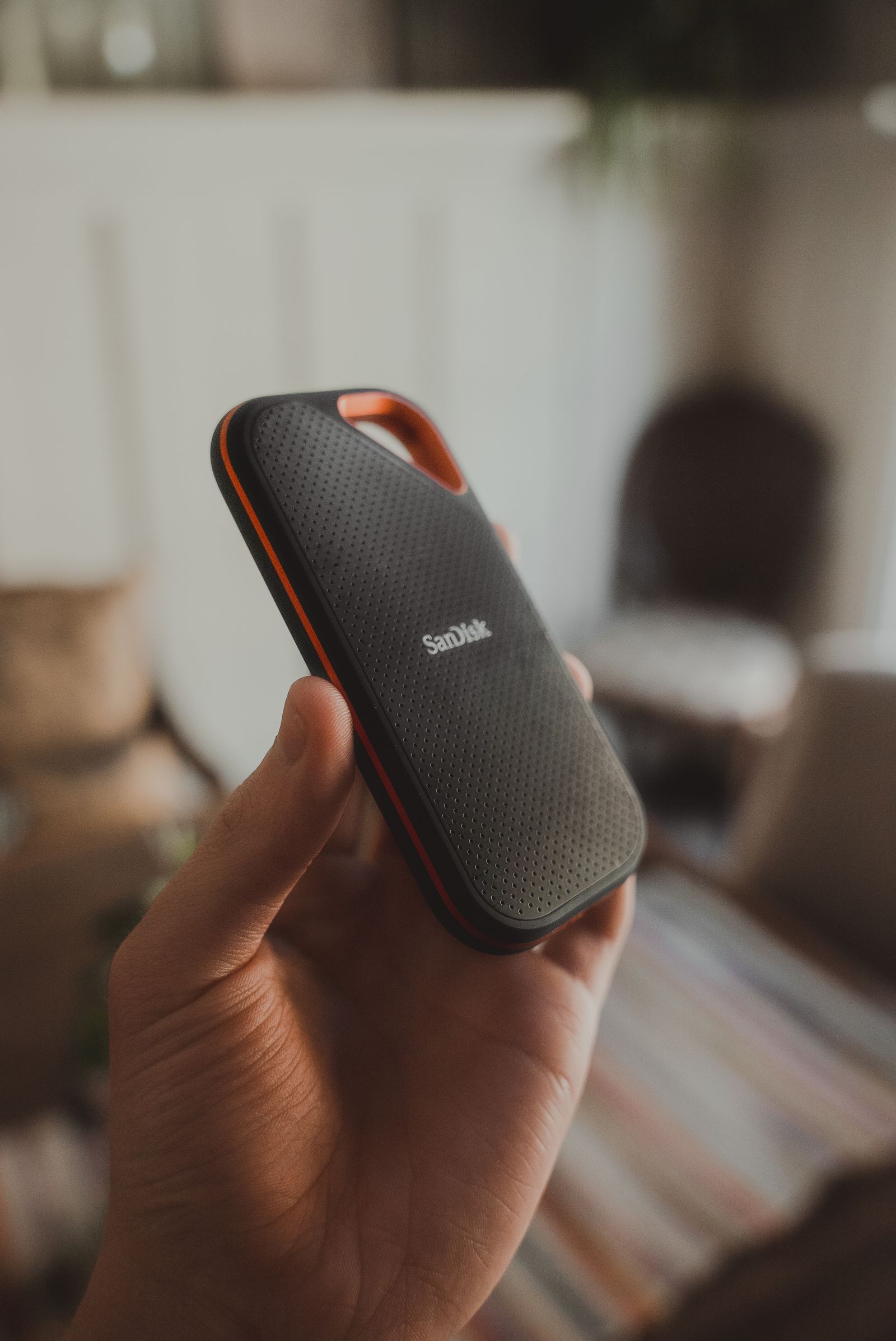
A wireless mouse that works perfectly across the room can start stuttering the moment you plug an external hard drive into the USB 3.0 port right next to its receiver. Swap batteries, move the receiver closer, restart the computer — none of it helps, because the problem was never the mouse's radio. It was the USB port sitting a few centimeters away from it.
USB 3.0 Ports Broadcast Noise in the Same Band Your Mouse Uses
USB 3.0's SuperSpeed signaling runs its data lines at 5 gigabits per second using spread-spectrum clocking, and that clocking spreads harmonic noise across a wide chunk of spectrum, including the 2.4 to 2.5 gigahertz range. That happens to be the exact band that 2.4GHz wireless mice, keyboards, and Wi-Fi all share. Intel documented this directly in a 2012 white paper measuring the effect and recommending shielding fixes for it. It isn't a rumor or a one-off anecdote; it's a known electromagnetic compatibility problem built into the USB 3.0 spec itself.
Why It Only Shows Up Sometimes
The interference scales with how much data is actually moving across that USB 3.0 link, so it isn't constant. An idle USB 3.0 hard drive emits comparatively little; the same drive mid-transfer, or a USB 3.0 hub with several devices active, pushes measurably more noise across that band. That's why the stutter often lines up with a large file copy or a backup running in the background, and clears up once the transfer finishes. It looks intermittent because the source of it actually is.
Distance and Cable Choice Matter More Than the Mouse
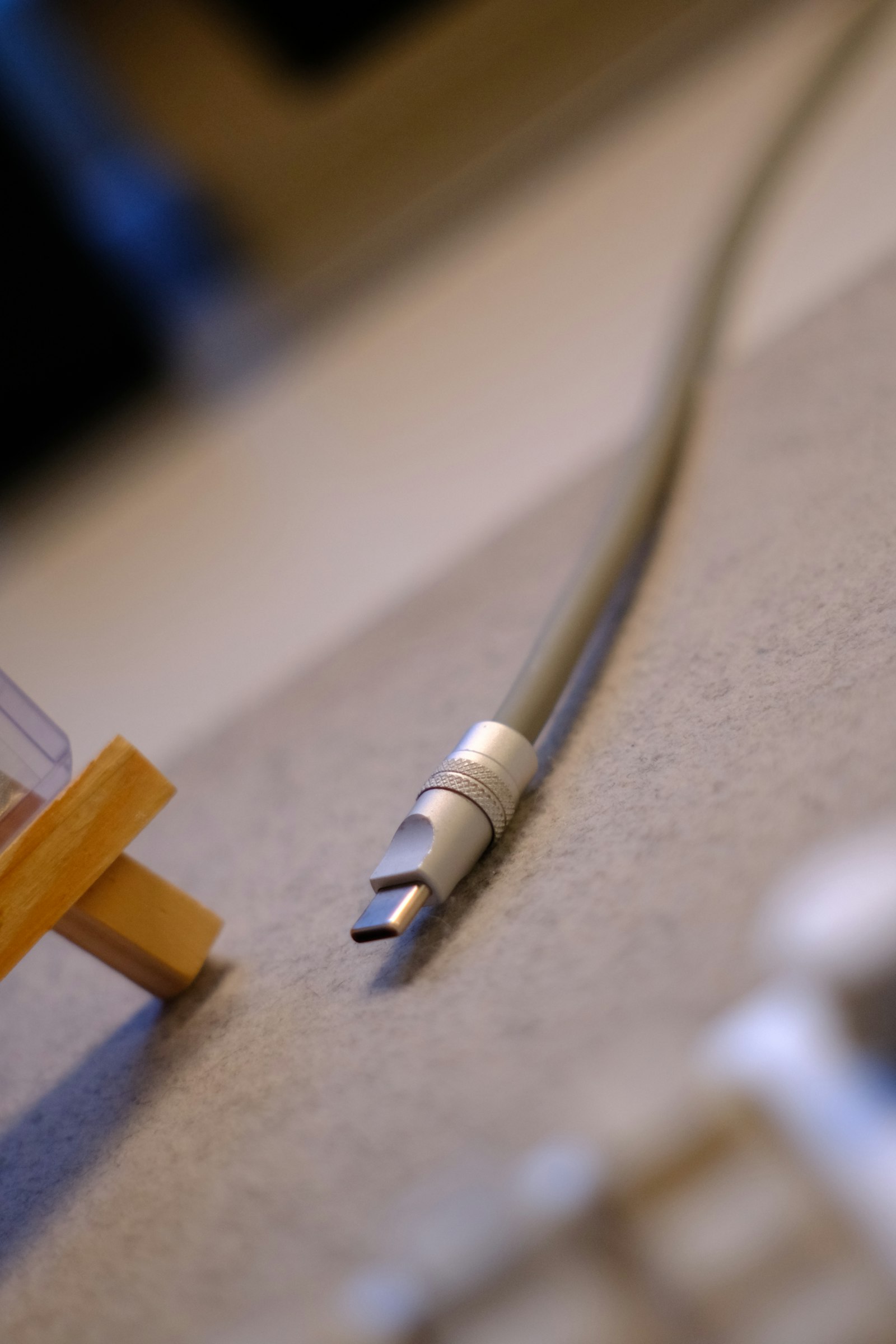
Because this is a proximity problem rather than a range problem, the fix has almost nothing to do with the mouse itself. Moving the receiver a few centimeters away from the USB 3.0 port — a short USB extension cable is usually enough — fixes it in most cases, since interference from spread-spectrum clocking falls off quickly with distance. A shielded USB 3.0 cable helps too, since some of the leakage comes from the cable itself acting as an unintentional antenna, not just the port. Neither fix has anything to do with pairing, batteries, or signal strength, which is why troubleshooting the mouse itself rarely works.
Bluetooth Mice Aren't Fully Immune Either
Bluetooth also operates in the 2.4GHz band, so it isn't a clean escape from this, but its frequency-hopping spread spectrum gives it more built-in resilience against a fixed noisy neighbor than a simple 2.4GHz RF dongle usually has. In practice, a 2.4GHz dongle sitting an inch from an active USB 3.0 port is the more fragile setup of the two.
The Actual Fix
If a wireless mouse or keyboard only stutters near a specific USB port, extend the receiver away from that port before touching anything else. A cheap USB extension cable solves more of these cases than a new mouse, a firmware update, or a different USB port ever will, because the interference was coming from the port's own electrical activity the entire time, not from anything wrong with the input device.